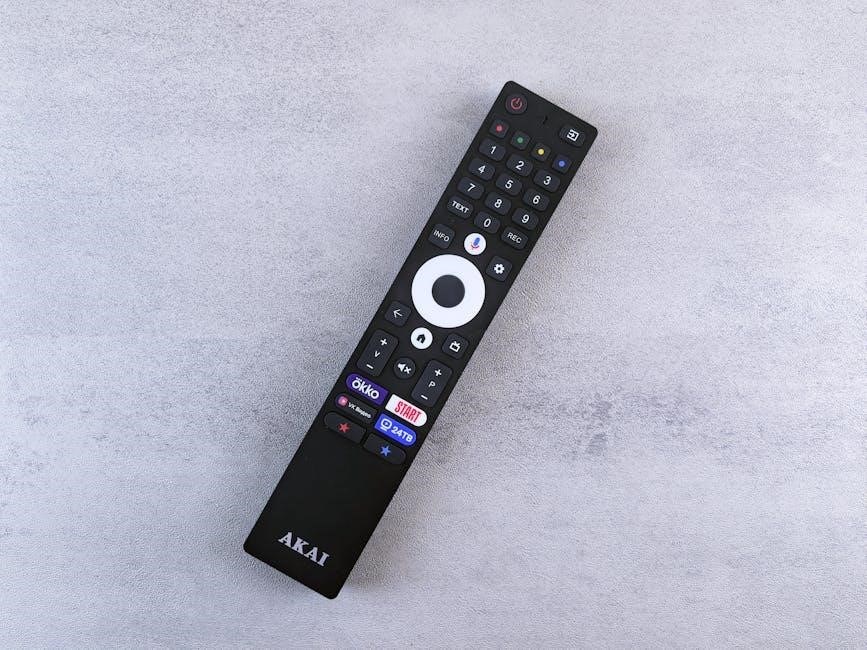
LG TV Channels Guide: A Comprehensive Plan
This guide details adding channels to your LG Smart TV, covering antenna setup, scanning, the LG Content Store, IPTV, and troubleshooting common issues.
Setting up channels on your LG TV is crucial for accessing live television content. Whether you’re connecting an over-the-air antenna, a cable or satellite box, or utilizing streaming services, proper channel configuration unlocks a world of entertainment.
LG TVs offer both automatic and manual channel programming options. Automatic scanning efficiently detects available channels, while manual entry provides precise control. This guide will navigate you through each method, ensuring a seamless and personalized viewing experience. Mastering this process transforms your LG TV into a versatile entertainment hub.
Understanding Channel Sources for LG TVs
LG TVs support diverse channel sources, catering to varied viewing preferences. Over-the-air antennas receive broadcast signals, requiring initial channel programming. Cable or satellite boxes deliver paid channel packages, typically connected via HDMI. Increasingly popular are streaming services & apps, accessed through the LG Content Store, offering subscription-based content.
Furthermore, IPTV (Internet Protocol Television) utilizes internet connections and M3U lists for channel access. Understanding these sources is key to optimizing your LG TV setup and enjoying a comprehensive entertainment experience tailored to your needs and location.
Over-the-Air Antenna Setup
Connecting an over-the-air antenna to your LG TV unlocks free local channels. First, physically connect the antenna to the ‘ANT IN’ port on your TV. Crucially, these channels require programming into the TV; they won’t appear automatically. You have two options: automatic channel scanning or manual channel entry, both controlled via your LG TV remote.
Ensure a strong signal for optimal reception. Antenna placement and type significantly impact performance. After connection, initiate a channel scan to detect available broadcasts in your area, preparing your TV for free viewing.
Cable/Satellite Box Connection

Connecting a cable or satellite box to your LG TV is straightforward. Use an HDMI cable for the best picture and sound quality, connecting it to both the TV and the box. Select the correct HDMI input on your LG TV using the remote control.
Typically, the TV will automatically detect the connected device. If not, manually select the appropriate input source. Channel selection and guide access are then managed through your cable or satellite box’s remote, not the LG TV remote. Ensure proper box activation with your service provider.
Streaming Services & Apps
LG TVs offer extensive access to streaming services and apps, expanding your channel options beyond traditional broadcasting. Popular platforms like Netflix, Hulu, Disney+, and Amazon Prime Video are readily available through the LG Content Store.
These apps function as individual “channels,” providing on-demand content and often live streaming options. Installation is simple – just search and download. Many services require subscriptions. Utilizing these apps transforms your LG TV into a comprehensive entertainment hub, offering diverse viewing choices.
Automatic Channel Scanning
LG TVs simplify channel setup with an automatic scanning feature. This process allows the television to detect all available over-the-air channels in your area without manual input. It’s a convenient option for most users, requiring minimal effort.
To initiate a scan, navigate to the channel settings menu using your LG TV remote. The TV will then systematically search for broadcast signals and program them into your channel list. Both methods – automatic and manual – utilize the remote control for operation.
Initiating an Auto Program Scan
To begin an auto program scan on your LG TV, press the ‘Settings’ button on your remote. Navigate to ‘Channel’ or ‘Broadcast’ settings – the exact wording may vary by model. Select ‘Auto Program’ or ‘Auto Scan’.

You’ll likely be prompted to choose between ‘Air’, ‘Cable’, or ‘Cable/Air’ scanning. Select the appropriate option based on your connection. The TV will then begin scanning for available channels. This process may take several minutes, so patience is key.
Optimizing Auto Scan Settings
Before initiating an auto scan, explore available settings to optimize the process. Within the ‘Auto Program’ menu, look for options like ‘Scan Mode’ – choose ‘Full’ for a comprehensive scan. You may also find a ‘Frequency’ or ‘Channel Step’ setting; leave this on ‘Auto’ unless you have specific regional requirements.
Some LG TVs allow you to specify a frequency range to scan. Ensure your antenna or cable connection is secure for best results. A strong signal is crucial for successful channel detection during the auto scan.
Post-Scan Channel Organization

After the auto scan completes, your LG TV will likely display a long list of channels. Begin by creating ‘Favorite Channel Lists’ for quick access to frequently watched programs. Utilize the ‘Channel Editing’ function to delete unwanted channels, streamlining your viewing experience.
Explore ‘Channel Sorting’ options to arrange channels numerically or alphabetically. Consider custom numbering for personalized organization. Regularly review and update your channel list to maintain a clean and efficient setup, enhancing overall usability.
Manual Channel Setup
For users preferring precise control, manual channel setup allows direct input of channel frequencies. This method bypasses automatic scanning, ideal for specific or weak signals. Access the ‘Channel Setup’ menu on your LG TV and select manual programming.
You’ll need to know the exact frequency for each desired channel. This process requires patience and accurate information. Manual setup is particularly useful when auto scan fails to detect certain channels, offering a tailored viewing experience;
Entering Channel Frequencies Manually
To manually enter frequencies, navigate to the ‘Manual Program’ or ‘Channel Setup’ section within your LG TV’s settings. You’ll typically be prompted to input the channel number, frequency, and modulation type (analog or digital). Accurate frequency data is crucial for successful tuning.

This information can often be found online or provided by your local broadcast provider. Carefully enter each value using your remote. After inputting the details, initiate the scan; the TV will search for the channel based on your specifications.
Fine-Tuning Manual Channel Settings
After an initial manual scan, channels may not always come in perfectly; LG TVs often allow for fine-tuning of these settings. Look for options like ‘Fine Tune’, ‘Signal Strength’, or ‘Signal Quality’ within the manual channel edit menu.
Adjusting these parameters can improve picture and sound clarity. Experiment with small increments to find the optimal settings for each channel. Poor signal strength might indicate antenna adjustments are needed. Remember to save any changes made to ensure the TV retains the optimized settings.
Saving and Managing Manual Channels
Once you’ve manually entered and fine-tuned your channels, saving them is crucial. LG TVs typically offer a ‘Save’ or ‘Apply’ button within the manual channel setup menu. After saving, you can manage these channels through the channel list.
This allows for reordering, deleting unwanted channels, and creating custom channel lineups. Regularly reviewing and updating your manual channel list ensures optimal viewing. Proper management keeps your channel selection organized and tailored to your preferences, enhancing your overall TV experience.
The LG Content Store for Channels
The LG Content Store expands your channel options beyond traditional sources. It provides access to a variety of channel apps, offering specialized content and streaming services directly on your TV.
You can browse and install these apps, similar to smartphone app stores, enhancing your entertainment choices. Many channels require subscriptions, managed directly through the store. Regular updates ensure app functionality and content availability. Exploring the LG Content Store unlocks a world of diverse viewing experiences, complementing your existing channel lineup.
Accessing and Installing Channel Apps
To access the LG Content Store, navigate to the TV’s home screen using your remote. Locate and select the “LG Content Store” icon – it often resembles an app store logo. Within the store, browse categories or use the search function to find desired channel apps.
Selecting an app displays details, including user reviews and pricing. Choose “Install” to download and install the app. Once installed, the app icon appears on your home screen, granting immediate access to its content. Enjoy expanded viewing options!
Subscription Services via the LG Content Store
The LG Content Store offers numerous subscription-based channel services, expanding beyond free apps. These services typically require a monthly or annual fee, billed directly through your LG account. Popular options include streaming platforms with live TV components, specialized content providers, and international channels.
Subscribing is straightforward: select the service, review the terms, and confirm payment. Access subscribed channels directly through their dedicated apps on your LG TV’s home screen. Manage subscriptions easily within your LG account settings, including cancellation options.
Managing Subscriptions and App Updates
Efficiently managing your channel subscriptions within the LG Content Store is crucial. Access your account settings on the TV to view active subscriptions, renewal dates, and billing information. You can easily cancel unwanted subscriptions directly from this menu, avoiding further charges.
Regular app updates are equally important. The LG Content Store automatically handles many updates, ensuring optimal performance and access to new features. Check for manual updates periodically within the store to guarantee all your channel apps are current, providing a seamless viewing experience.
IPTV Configuration on LG TVs
IPTV (Internet Protocol Television) offers a flexible alternative to traditional broadcasting. Configuring IPTV on your LG TV typically involves installing a compatible IPTV app and entering an M3U playlist URL provided by your IPTV service provider.
Understanding M3U lists is key; these files contain channel information. Once the app is installed and the playlist loaded, you can access a wide range of channels. Troubleshooting connection issues may require verifying your internet connection and playlist URL accuracy. Explore available apps for a tailored experience.
Understanding IPTV and M3U Lists
IPTV (Internet Protocol Television) delivers television content via an internet connection, bypassing traditional methods like antennas or cable. M3U lists are crucial for IPTV functionality; they are essentially text files containing URLs that point to the streaming channels.
These lists act as a directory for your IPTV app, telling it where to find each channel’s stream. Obtaining a valid M3U list usually requires a subscription to an IPTV service. Understanding this format is vital for successful configuration on your LG TV.
Installing and Configuring IPTV Apps

LG TVs don’t natively support IPTV, requiring third-party apps. Popular choices include IPTV Smarters Pro and TiviMate (though availability may vary by region). Download these apps from the LG Content Store.
Once installed, launch the app and enter the M3U list URL provided by your IPTV service. Some apps may also require login credentials. Proper configuration ensures channels load correctly. Explore the app’s settings to customize the viewing experience and optimize performance for smooth streaming.
Troubleshooting IPTV Connection Issues
IPTV connection problems often stem from internet instability. Verify your internet speed meets the provider’s requirements. Restart your modem and router, then relaunch the IPTV app. Double-check the M3U list URL for accuracy; even a minor error prevents connection.
If issues persist, clear the app’s cache. Ensure the app is updated to the latest version. Contact your IPTV service provider to confirm service availability and troubleshoot potential server-side problems. A wired connection can improve stability.
Customizing Your Channel List
LG TVs offer robust channel list customization. Create “Favorite” lists for quick access to frequently watched channels, streamlining your viewing experience. Easily edit channel names for clarity or delete unwanted channels to declutter the guide.
Re-order channels numerically or manually to suit your preferences. Utilize the channel sorting features to group similar content. These options enhance control and enjoyment, transforming your TV into a personalized entertainment hub. Regular customization keeps your channel lineup organized and efficient.
Creating Favorite Channel Lists
LG TVs simplify viewing with customizable favorite channel lists. Access this feature through the settings menu, allowing you to quickly select channels you watch most often. Adding channels to “Favorites” provides a streamlined, personalized viewing experience, eliminating endless scrolling through the full channel lineup.
You can create multiple favorite lists tailored to different family members or viewing moods. This feature enhances control and convenience, making it easy to jump directly to preferred content. It’s a key element in optimizing your LG TV experience.
Channel Editing and Deletion
LG TVs offer robust channel management, including editing and deletion capabilities. Easily remove unwanted channels from your list to declutter your viewing experience. This is particularly useful after auto-scanning, which often includes channels you won’t watch. Access these options through the channel editing menu within the TV settings.
You can also rename channels for easier identification. Editing and deleting channels ensures a personalized and efficient channel lineup, improving navigation and overall enjoyment of your LG Smart TV. Maintaining a clean channel list is key.
Channel Sorting and Numbering
LG TVs allow for customized channel sorting and numbering, enhancing your viewing convenience. Rearrange channels to match your preferred order – news, sports, movies, and more. You can manually adjust the channel numbers to create a logical sequence that suits your viewing habits.
This feature streamlines channel surfing and reduces search time. Efficient channel organization transforms your LG Smart TV into a truly personalized entertainment hub. Take control of your channel list and enjoy a more intuitive and enjoyable television experience.
Troubleshooting Common Channel Issues
LG TV channel problems can range from “no signal” errors to scan failures and picture/sound disruptions. If you encounter “no signal,” check antenna connections or cable/satellite box functionality. Channel scan errors often require re-scanning or manual channel entry.
Picture and sound issues might stem from incorrect input settings or cable problems. Regularly updating your TV’s firmware can also resolve compatibility issues. Don’t hesitate to reset channel settings to default as a troubleshooting step for persistent problems.
No Signal Issues
“No Signal” on your LG TV typically indicates a problem with the connection between your TV and the source. First, verify the physical connections – ensure the antenna or cable/satellite box cable is securely plugged into the TV. Confirm the input source selected on your TV matches the connected device.
If using an antenna, reposition it or check for obstructions. For cable/satellite, contact your provider. A faulty cable can also cause this issue; try a replacement. Finally, a power cycle of both the TV and source device can sometimes resolve the problem.
Channel Scan Errors
Channel scan errors on your LG TV can be frustrating. If a scan fails, first ensure your antenna (if used) is properly connected and positioned for optimal reception. Weak signal strength is a common cause. Try re-running the auto program scan, and double-check the auto scan settings, ensuring they are appropriate for your region and antenna type.
Sometimes, a factory reset of the TV’s channel settings can help. If errors persist, consider a manual channel scan, entering frequencies directly. Check for firmware updates, as these can improve channel scanning performance.
Picture and Sound Problems
Picture and sound problems after a channel scan on your LG TV often relate to signal quality or incorrect settings. First, verify the cable or antenna connection is secure. Check the TV’s input source is correctly selected. If the picture is distorted or absent, try rescanning for channels. Sound issues might stem from volume levels, muted settings, or incorrect audio output selection.
Explore the TV’s picture and sound settings, adjusting brightness, contrast, and audio modes. A weak signal can cause both picture and sound degradation; improving antenna placement may help.
LG TV Channel Guide Features
LG TV’s channel guide offers a wealth of features to enhance your viewing experience. Explore the intuitive program guide to easily browse available channels and scheduled programs. Utilize the channel preview feature to quickly see what’s currently playing on different channels. LG allows setting reminders and alerts for your favorite shows, ensuring you never miss an episode.
These features empower you with control and enjoyment, transforming your television into a versatile entertainment hub. Organizing channels and setting favorites further personalizes your viewing.
Exploring the Program Guide
LG TV’s program guide is your central hub for discovering and navigating available content. Access it directly from your remote, revealing a comprehensive listing of channels and their scheduled programs. The guide typically displays current, upcoming, and future broadcasts, allowing for easy planning.
You can often filter by genre, channel, or time to quickly find what you’re looking for. Many LG models offer a visual program guide, presenting a grid-like layout for convenient browsing. It’s a key feature for maximizing your viewing enjoyment.
Using Channel Preview Features
LG TVs often include channel preview features, enhancing your channel surfing experience. These previews typically display a small, live window showcasing the current content on a selected channel. This allows you to quickly assess if a program interests you before fully switching.
Accessing previews is usually done by highlighting a channel in the program guide and pressing a designated button on your remote. Some models offer larger preview windows or even full-screen previews for a more immersive look. It’s a convenient way to discover new shows!
Setting Reminders and Alerts
LG TVs offer robust reminder and alert features, ensuring you never miss your favorite programs. Within the program guide, you can typically set reminders for specific channels and times. The TV will then display an on-screen notification before the show begins, giving you ample warning.
Some models also allow for alerts based on program titles or actors. This is particularly useful for tracking shows with irregular schedules. These features transform your LG TV into a personalized entertainment hub, keeping you informed and engaged.
Advanced Channel Management
LG TVs provide tools for power users to refine their channel experience. Utilizing external channel scanners, beyond the built-in functions, can sometimes uncover additional available channels. Regularly checking for firmware updates is crucial, as these often improve channel compatibility and scanning accuracy.
For complete control, you can reset channel settings to their defaults, effectively starting the channel setup process anew. These advanced options allow for a highly customized and optimized viewing experience, ensuring you’re always getting the best possible signal and channel lineup.
Using External Channel Scanners
While LG TVs feature robust auto-scanning, sometimes utilizing external channel scanners can yield better results, particularly in fringe reception areas. These scanners, often software-based and run on a computer, can create detailed channel lists that you can then import or manually input into your LG TV.
This is especially useful if the TV’s built-in scan misses certain digital subchannels. Remember to consult the scanner’s documentation for compatibility and export formats. This advanced technique offers a pathway to a more complete channel lineup.
Firmware Updates and Channel Compatibility
Maintaining up-to-date firmware on your LG TV is crucial for optimal channel compatibility. LG regularly releases updates that address potential issues with channel reception, particularly after broadcast frequency changes or the introduction of new digital standards. These updates ensure your TV correctly interprets signals.

Check for updates within the TV’s settings menu. Outdated firmware can lead to missing channels or picture/sound problems. Regularly updating guarantees the best possible viewing experience and continued access to all available channels in your area.
Resetting Channel Settings to Default

If you encounter persistent channel issues after numerous troubleshooting steps, resetting your LG TV’s channel settings to default can be a helpful solution. This action clears all manually added channels and reverts to the factory settings for auto program scans.
Navigate to the general settings menu, then locate the channel settings or auto program option. Select the “Reset” or “Initial Setup” function. Be aware this will erase custom channel lists and require re-scanning. It’s a drastic step, but often resolves complex configuration errors.